Planning a PC Refresh: How Small Businesses Replace Computers Without Downtime
· By admin · Business IT Tips, Computer Repair
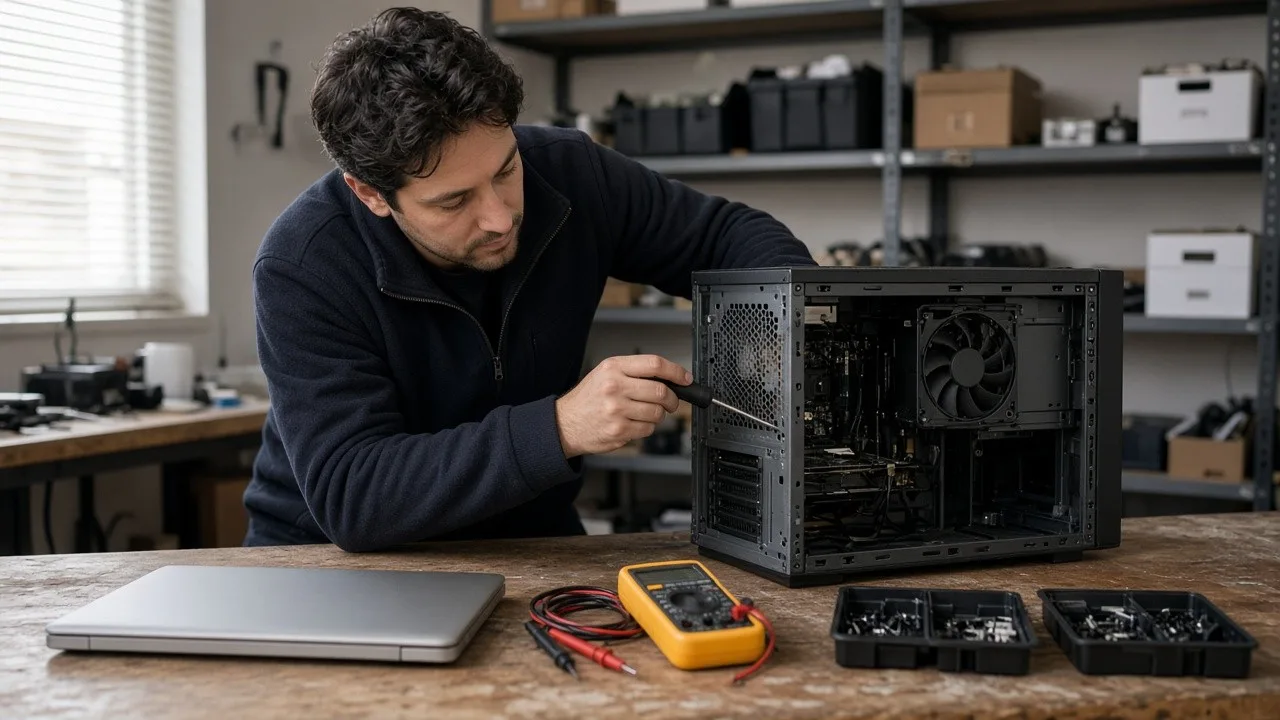
Every office eventually reaches the point where computers need to be replaced. Machines slow down, stop getting updates or start failing. Replacing them one at a time as they break leads to surprise downtime and a mix of systems that's hard to support. A planned refresh is calmer, cheaper to manage and much less disruptive.
Here's how small businesses can plan a PC refresh without losing a day of work.
Step 1: Take inventory
You can't plan a refresh without knowing what you have. For each computer, record:
- Who uses it and what they use it for
- Make, model and approximate age
- Operating system and whether it still receives security updates
- Key software installed
- Any known problems
This inventory often reveals surprises: a shared PC nobody remembers setting up, a critical program on one old machine, or a computer that can't run a current operating system.
Step 2: Decide what to replace and when
Not every computer needs replacing at once. Sort machines into groups:
- Replace now: Unsupported operating systems, failing hardware or computers that can't run the software people need.
- Replace soon: Older machines that still work but are slowing people down.
- Keep for now: Newer machines in good shape. Some may benefit from an upgrade like a solid-state drive or more memory.
If a machine is worth fixing, PC repair may extend its life. If it's not, put it on the replacement list. Our device lifecycle service helps businesses plan these decisions over time.
Step 3: Standardize where you can
Choosing one or two standard models makes support easier. Staff get familiar hardware, spare parts and chargers are interchangeable, and setup becomes repeatable. Roles with special needs, like design, engineering or data work, may need a more powerful workstation. We also build custom PCs and workstations for those roles.
Step 4: Plan the data migration
Moving data is the part of a refresh that causes the most anxiety. Before replacing any computer, identify:
- Files stored on the computer rather than on a server or in cloud storage
- Email data, especially if any is stored locally
- Browser bookmarks and saved settings
- Software licenses that need to be moved or reactivated
- Printers, scanners and other devices that need drivers
Back up each computer before you touch it. Then confirm the new machine has everything the user needs before you wipe the old one.
Step 5: Prepare machines before swap day
Set up new computers before they go on desks. That includes:
- Installing updates
- Installing standard software
- Joining the business network and account system
- Setting up security software and backups
- Testing printers and shared drives
When computers are ready in advance, the swap itself takes minutes per desk instead of hours.
Step 6: Schedule swaps to avoid downtime
Plan the swaps for times that hurt the least:
- Before or after business hours
- On a slower day of the week
- In small batches, so you can fix problems before moving on
Tell staff ahead of time when their computer will be replaced and what they need to do, like saving open work and noting any special software.
Step 7: Check in after the swap
On the first day with a new computer, check in with each user. Make sure they can sign in, open their files, print and use their key applications. Small problems found early are easy to fix.
Step 8: Retire old computers securely
Old computers often hold sensitive business and customer data. Don't toss them in a closet or recycle them without wiping them. Securely erase or destroy the storage drives, and keep a record of which devices were retired and how.
Step 9: Keep the inventory current
Update your inventory with the new machines, their purchase dates and warranty information. That makes the next refresh easier to plan, and it helps you spot computers that need attention before they fail.
Need a hand with a computer refresh?
Computer Service Now has helped businesses with IT support from Middletown, Ohio, since 1991. We can help you take inventory, choose hardware, set up machines, migrate data and retire old devices. Learn more about our computer services, then request a quote to plan your refresh.